Prompt for Out of Date tasks
This is a setting that you as a firm decide whether to have turned on or off
If it has been switched on, you may sometimes get the below window pop up, this will show if Tasks have been changed by your Administrator in the background, when you go into a matter that the new task affects, the system will ask you if you want to update your tasks. **Note** It is recommended that you do not tick the box in the bottom left corner 'Do not show again for the future' as this message will only ever pop up if the task list for any matter you access is no longer up to date at the point you go into it. Following the steps below means that you will have made the matter you are in up to date at that point in time - you should be warned at a later date if that changes but ticking the box means you will not be.
Select Yes if required, then click on Reset in the next window
Then Reset and Retain History. If you don’t select this option you will lose all your ticks on the tasks for the matter you are currently in.
Completing a Task
To complete a task, you need to tick the box next to the task you are doing. This will put a completed date of today next to it, and who completed the task.
If, however, you completed the task previous to today, double click anywhere on the relevant task line, (apart from the tick box), and it will bring up a date window where you can select the actual date the work was done. Then click save.
Once the tasks in black have been completed, you must activate the matter before moving onto the other tasks in red.
Activating a Matter
This can be done in two ways:-
- You may have a task for activating the matter on the Progress screen via a triggered action. When this is ticked, provided all the other tasks in black writing have been ticked, it will activate the matter. If the task has been set up this way it will look something like this with the green tick in a green circle next to the tick box:-
- Go to the edit button on the matter in the left hand information panel. Then under the General heading, click on the dropdown box next to the Status field and select Active. Once you have made your change, you can either select OK to save and come out of that window. Or, you can click on Apply Changes. This saves your changes and keeps you in that same window.
For more information why not search the Help Centre for Case Statuses?
Tasks with Triggered Actions
Tasks can have triggered actions automatically set against them so when you tick a task it can bring up the action associated with it. There are many different triggers such as a letter, email or text message. You can have more than one triggered action, so the Client Care Pack task could have 3 letters, a form and a text message all done from one tick. These will have also been set by your Administrator.
Having triggered actions set means you can complete the work more quickly and efficiently.
If a task has a triggered action against it, there will be a symbol in the Category Column next to that task.
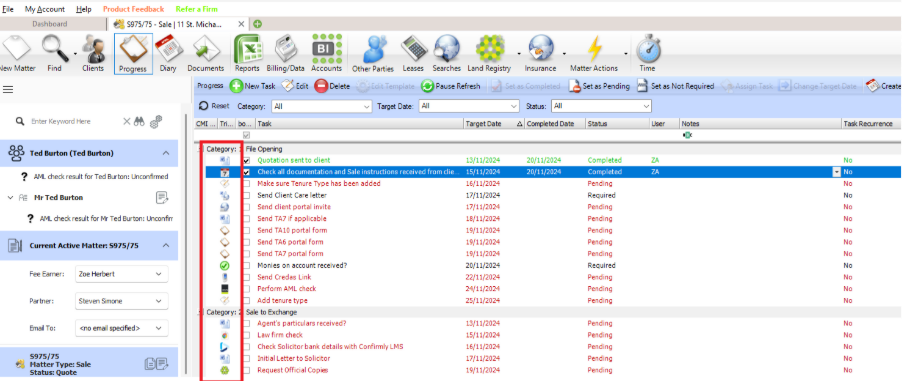
With a task that has a triggered action against it, when you click either on the tick box, or, on the task to change the date completed, it will take you to the relevant task/s associated with it.
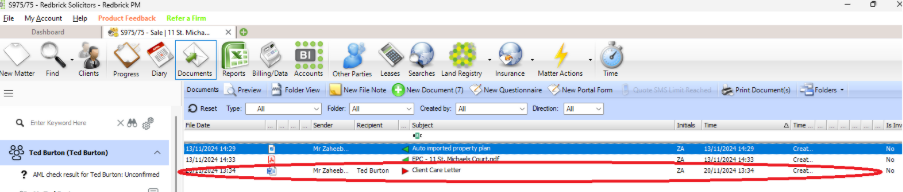
The example below shows a Word Document is the triggered action, in this case it is client care letter being sent. This has a Word icon in the Category Column next to the task.
Once the task is clicked it will automatically take you to the New Document window, and will highlight the correct Document type and the correct document.
You just then open it in the usual way to create it and it will save in the Documents screen (some triggers are designed to open the document highlighted in the list but then will also open other documents at the same time, it all depends how your administrator has set them up).
If you have multiple task triggers set against one task they will show one at a time.
For example, a client care pack may have various letters plus some internal forms or questionnaire triggers set against the task, however, for the particular matter you are in, you may not need to run all of them.
If that is the case run the task triggers that you do require, and when you get to one that you don’t need just 'X' out of it (or select Cancel in the appropriate window), and if there are any other task triggers to run you will get the message asking if you want to do the remaining triggered actions.
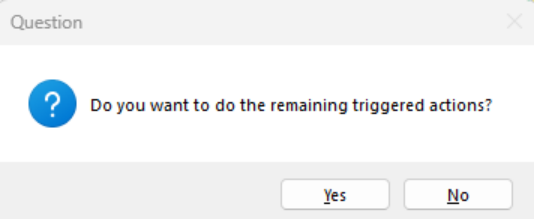
If you select Yes, it will carry on opening the remaining task triggers, and again you can X out of the items not needed.
If you select No, it will then pop up with another window asking if you still want the task to be ticked off as completed.
Make your selection as required.
If you have ticked a task for a document to be sent to a 3rd party, i.e. the Agent, and there is no Agent set against the file then you will get a message telling you this and asking if you want to set an Agent up. Otherwise, you won’t be able to create that document.
Say Ok to this and it will take you to the relevant 3rd party screen to either search for them or add them in as a new party.
Another triggered action on a task could be a text message and email.
For this to work, the matter must have a valid mobile number and/or email set against the client and for it to be flagged to send text and/or emails.
This can be found in the client setup under communications.
When a task is ticked that has a triggered action of text message and email, it will automatically send them to the client in whichever format is selected in the window shown above. This may be different for each contact on the client account depending on what information you have for them and what their preference is for the format but the confirmation window will confirm this for each party once the message has been sent.
It will bring up a window showing the message sent.
Task Triggers
Please refer to your Administrator to set any of these triggers up
There are a lot of triggers that can be attached to a task, which are split into categories:-
Documents
Insert File – Pull a file into the matter from outside of Redbrick (doesn’t need to be a word template i.e. a PDF containing Terms of Business for all matters).
Document – Merge Word template(s) from the document library, or pull a PDF from the document library, although this can’t auto-populate.
File Note – Adds a file note with default text.
SMS & Email – Send a text message to the client and or an email (at quote or active stage).
Portal Form – These are forms such as The Law Society forms, TA6, etc. These are used via the client portal, which needs to be setup first, and you need to purchase the forms as they are not free.
Questionnaires – you need to be using the client portal and have this setup – pulls certain onboarding information into Redbrick.
Land Registry
We integrate with various types of LR searches. Triggers can be set to request: Title Numbers; an index map search; bankruptcy searches, office copies and additional documents, OS1 or OS2; and submit an eDRS (Electronic AP1) application.
Before Land Registry functionality is available it needs to be linked to land reg users accounts. eDRS requires Administrator set up before it can be used.
LMS
We integrate with LMS for solicitors checks (Account required)
Other
AML Check - Run a Money Laundering Check against the client (Account required)
Certainty Check – Run a Check against Certainty Wills database (Account required)
Indemnity Insurance – Initiate an Indemnity policy quote via our 3rd parties (Account required)
Diary Appointment – Automatically create a diary appointment, in the Redbrick diary, for x days ahead of the task
Review Solicitors Request – Automatically send a Review Solicitors feedback request (Account required)
Record Time – If you use our time recording you can set defaults
Search – Start a property search with CDS (Conveyancing Data services) or TM Group (Account required)
Armalytix – sends an invite to fill in Source of Funds (Account required)
Credas – sends an invite for AML (Account required)
Send Portal invitation - Client portal invites can be sent out automatically – use of client portal and setup required
Thirdfort – sends out an invite for AML and Source of Funds (Account required)
Sort Refer – this is for onboarding clients via Sort refer for referral work (Account required)
Quill
Various options if you have integration with Quill Accounts
Updates
Task - A secondary task can be completed upon completion of the first i.e. a Local Search and a Coal Mining Search may need to be completed if the All Searches returned task is ticked
Billing - Upon completing a task the user can be led to the billing screens to check and update the figures
Case - After completing a task the user can be led to a particular part of the screen to check and ensure the information is correct i.e. Open the Property Information as part of the pre- exchange checks and ensure the data is correct
Case Status - After ticking a task the Matter Status can be automatically updated i.e. set to Exchanged
Client - after ticking a task the user can be prompted to update the client address i.e. after completion the property address can become the client address without having to re-key the information
Party – After completing a task it can take you to your selected Other party. e.g. your process might be to update the other side bank details first before doing a bank check.
Web Link – Any website can be opened upon completion of a task i.e. Solicitors Check for other side solicitors on the SRA website
Unticking Tasks
If you have ticked a task by mistake, or need to re-run that task, it can be done easily just by unticking the box next to the relevant task.
You will then get the below message.
Click Yes and then re-run the task as above if desired.
Setting Tasks as Not Required
If there is a task showing, and for this particular case it is not required, you can set it as not required.
Highlight the task, right click on it and click Set as Not Required.
This will put a line through that task only.
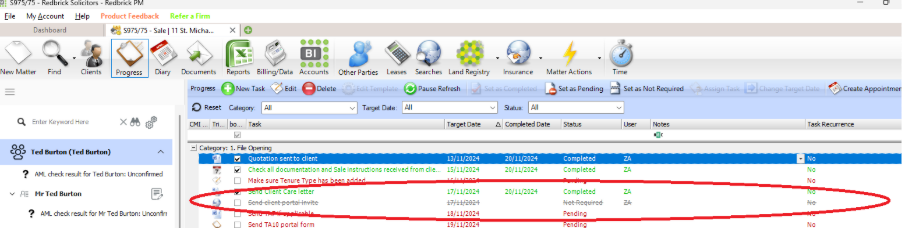
 You are also able to select more than one task at a time and flag them as not required. This may be if your client doesn’t have an estate agent so you need to flag all the relevant tasks as not required. To do this highlight the tasks using your mouse and either the shift key for a block or the control key for individual items. Then right click them and select not required.
Notes against Tasks
There is a Notes Column in the Progress Screen. This enables you to put a note against a task. Just click into the Notes Column against a task and type in, then click OK to save it. This can be edited or removed.
As the Progress Screen can be available for your clients to view via our client portal, this can be useful information for them to see if there is any issue/holdup.
Using the column chooser, you can add different columns, such as a column for Internal notes.
This means that you can have notes for your clients to see, and notes for internal purposes only.
Ensure that you are fully aware of the distinction between notes and internal notes. Notes can be read by the client if you are using the Redbrick Portal. Internal Notes are private to you and your colleagues.
Good practice would be to arrange the columns so that Notes and Internal Notes are separated from each other, to avoid potential confusion.
If you found this article helpful, please "Like" it using the thumb below. It really helps us to know which articles are the most useful to you!


