Schedule Tasks n Days Before Another Task (Administrator)
When you create a task you are able to specify where this task sits within your list on the Progress Screen. Although the default option is to do this by setting the Target Date for the task as being a number of days after a different task, you can also set it to be number of days BEFORE a different task.

This may be handy where you need to ensure certain tasks are done before exchange or completion.
How Does it Work?
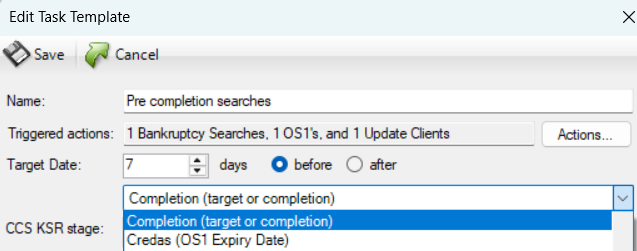
To set a new task a number of days before another task, first of all create your task in Options -> Matter Types -> [matter type required] -> Tasks -> New Task, give your task a name then 'Apply'. Then you can set the Target Date a number of days and ensure the 'before' radio button is selected. Finally choose the other task that you want your task to appear before from the drop down list. You can then Save your new task.
To set an existing task a number of days before another task, either find an example of the task on the Progress screen and click "Edit Template":
or locate the task in the Options area (Options -> Matter Types -> [matter type required] -> Tasks, highlight and Edit Task:
Then you can set the Target Date a number of days and ensure the 'before' radio button is selected. Finally, choose the other task that you want your task to appear before from the drop down list:

If you found this article useful, please "Like" it using the thumb below. It really helps us to know which articles are the most useful to you!
Related Articles
Tasks and Progress Screen
Tasks Your tasks are a list of items that are required to be done to complete that matter and will show the current Progress. As well as, in it's simplest form, a checklist of things that need to be done, tasks can drive various things like: letters; ...Resetting Tasks
Whenever you open a new matter in Redbrick the tasks are created by populating from the Task Templates. If an administrator makes any changes to the existing task templates after a matter is created then these will be immediately reflected in the ...Adding and Amending Tasks (Administrator)
Tasks Tasks are items that appear in the Progress Screen. Essentially, they are a list of items that are required to be done to complete that Case and will show the Progress of that case. Tasks can be various things like letters, emails, text ...Assigning Tasks
You can either set up task assignments individually on a matter by matter basis, or to the whole task template, so every time a matter is created that task will already be assigned. Assigning Tasks on a Matter To assign a task to an individual or ...Multiple Visibility Conditions on Tasks and Task Categories (Administrator)
If you want certain tasks or task categories to only be visible in the Progress screen in specific circumstances, you can set visibility conditions against them. One example would be to have all mortgage based tasks only be visible if the user ticks ...